
It finds the content nobody classified
Librarian reads the same registry entries DAZ Studio reads, so every library DAZ knows about is found without being told — DAZ-format folders, Poser-format folders, the Daz Connect cloud folder and DAZ's own built-in content, across every install profile on the machine. A library DAZ never registered goes in by hand and is remembered.
Then it brings together three sources DAZ Studio shows separately: Install Manager's product manifests, Daz Connect's metadata, and a sweep of everything neither claims. That last pile is the interesting one. A product installed by hand has no manifest, so it has no content type and no category, and DAZ, with nothing to go on, keeps it safe in Lost and Found. Librarian goes one step further and reads the file's own header, where every .duf states what it is in its first two hundred bytes, and files it where DAZ's own vocabulary says it belongs. A vendor's deliberate classification always wins; nothing is guessed over.

Seven trees: DAZ's own three, and four more
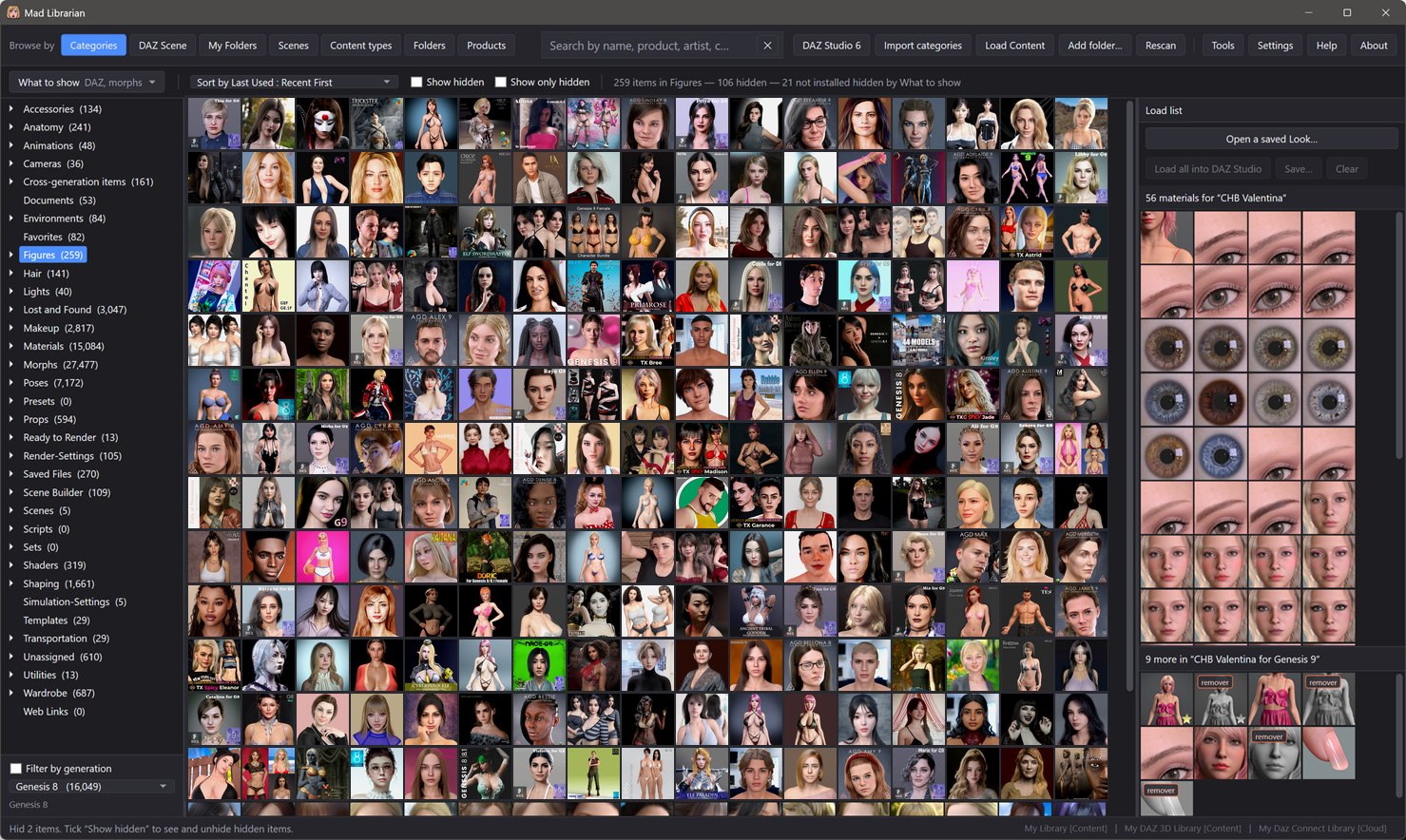
Categories, Content types and Folders are DAZ's own three views, rebuilt. Products groups everything by the product it came from. My Folders are folders you invent. Scenes lists every scene you have saved and the content each one uses. DAZ Scene shows what is standing in DAZ Studio right now.
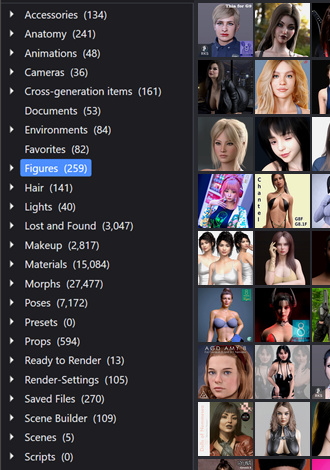
Inside Categories, Librarian adds branches of its own. Makeup gathers makeup wherever DAZ filed it — split into Eyes, Face, Lips and Tattoos — because makeup ships six different ways and no metadata field names any of them makeup. Morphs does the same for shape presets, whether they sit under Shaping or carry no category at all. Materials is filed by what a preset actually paints — skin, lips, eyes, eyebrows, eyelashes, nails, hair, wardrobe — and under each of those by figure generation, newest first.
Selection works like File Explorer: Ctrl-click adds a branch, Shift-click takes the run over visible rows only, so a collapsed branch is never swept in by accident. Click empty space and nothing is selected, which means the whole library.
Search seven fields at once, and see what was held back
One box covers name, product, artist, category, content type, compatibility and path. Several words all have to match, in any order, and the search is scoped to whatever is selected in the tree — so the result line reads 3,643 matches for hair in 3 selected content types rather than giving a bare number. When the filters hid the hits, it says that too.
The filters are honest in the same way. What to show turns DAZ files, Poser files, scripts and owned-but-not-installed items on and off, and its button reads back what is being held out, so you can see something is missing without opening it. Filter by generation is DAZ's Filter By Context with the hidden count beside it, listing only the generations you actually own content for, newest first, with a count on each — which doubles as the answer to "how much Genesis 8 do I have". It sets itself whenever you load a figure. Props, lights and shaders carry no generation and are never hidden by it.
Thirteen sort orders, and three of the dates are genuinely different. Install Manager restores each vendor's own timestamps onto every file it writes, so no file clock on disk ever reads today; Install Date is taken from the folders the product brought with it, and is the order that answers "what did I just add".

Into the scene you already have open
Double-click and the item is merged into the DAZ Studio you are working in — not a new scene, not a restart. If DAZ is not running, the install you chose is started and the item goes in the moment it answers. Two DAZ Studios can be open at once: every request is addressed to the one you picked, so the other's plugin leaves it alone.
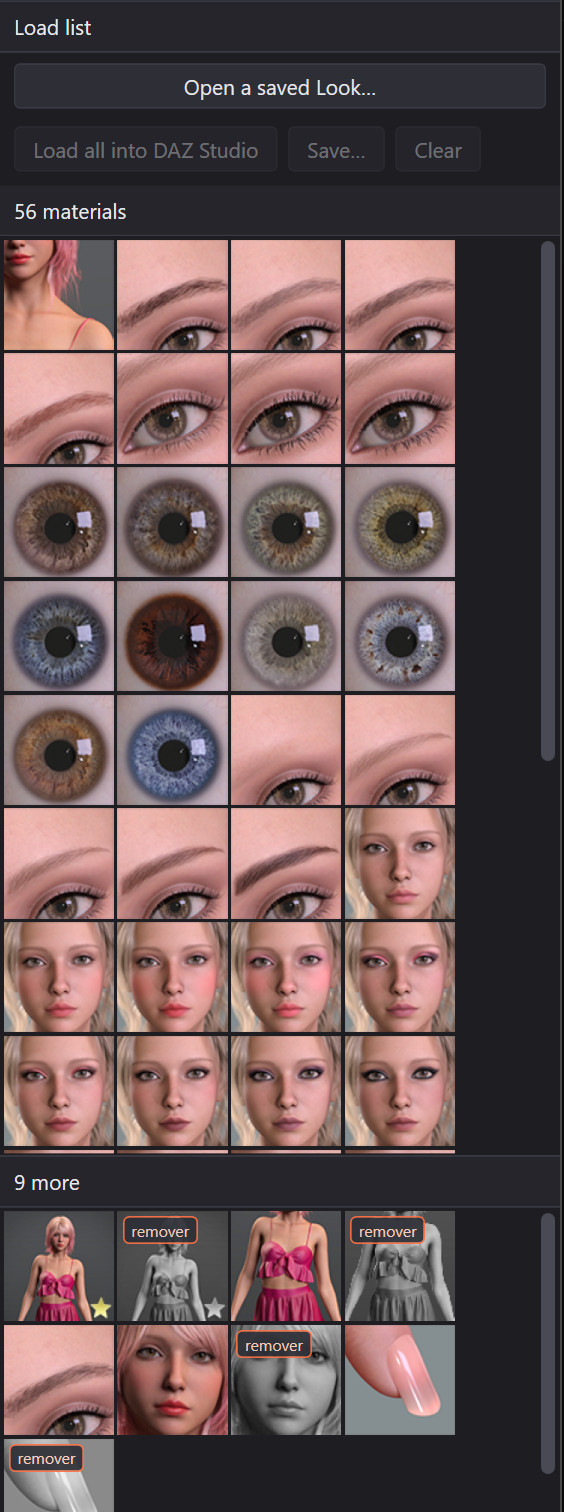
Select anything and its material presets are listed beside it — the same set DAZ shows under Materials when the item is selected in the scene, including a texture add-on you bought separately, because that relationship lives in the product metadata. Double-click a preset and it is applied; if the item is not in the scene yet it is loaded first, so dressing something in a particular skin is one gesture rather than two.
The load list queues pieces from any view and any search, and survives any amount of browsing. Sent together, figures go first so the clothes have something to land on, and each piece waits out the one before it — including its Auto-Fit prompt.
Makeup and tattoos stack, and cross generations
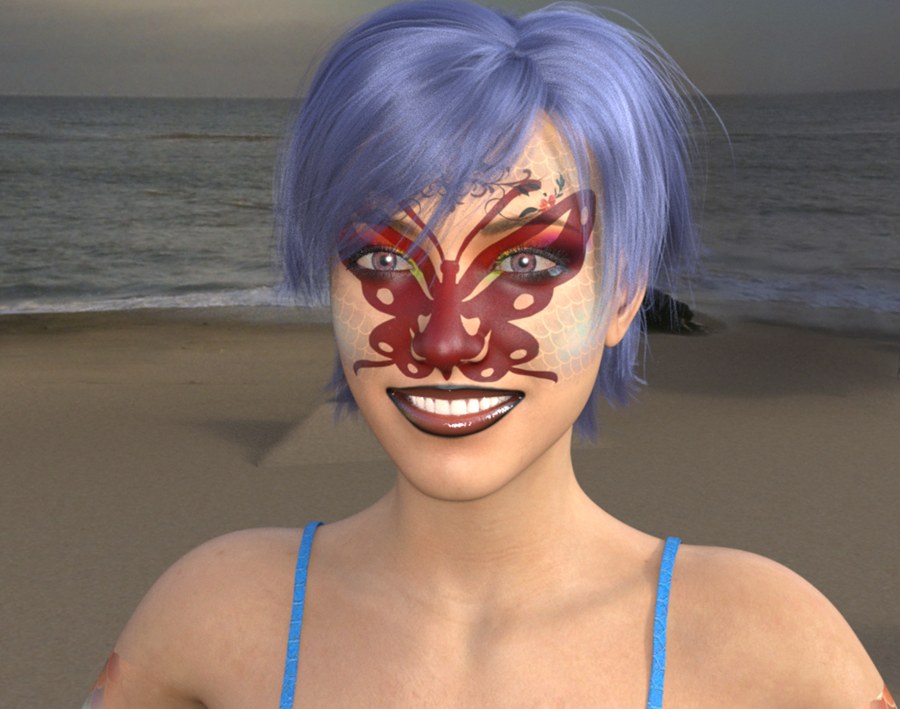
A vendor's makeup preset is a whole face sheet painted on their character. Load it onto yours in DAZ and their complexion arrives with it. Applied from Librarian only the makeup crosses: the figure keeps her own skin tone underneath.
And it accumulates. A second look goes on top of the first rather than replacing it, so face paint, a lace overlay, eye makeup, a lip colour and a tattoo can all be on one figure at once — and each still comes off on its own. They need not come from one product, or from one figure generation: a Genesis 9 design lands correctly on a Genesis 8, 3 or 2 figure, and the other way, because the sheet is resampled through the Auto-Fit clone correspondence DAZ itself ships rather than pasted into the wrong unwrap. Layered-image stacks, vendor scripts and encrypted presets all take the same route.
Taking it off is one command. DAZ Studio's undo history follows what you do in DAZ, and a scripted material change happens outside it, so Remove all makeup puts the figure's own skin back on every channel Librarian painted; a single look rewinds on its own. Presets that remove rather than add are badged as removers on the tile, so you can tell which is which before you double-click.
Every morph dial, as a tile you can browse
A morph is not a file you load. It ships as a .dsf under data/, and in DAZ Studio it comes to life as a slider in the Parameters pane once its figure is in the scene — exactly where you want it while you pose. What that leaves is a way to see them all before you start: a product that ships only dials has nothing to show in a content browser, and one here is nineteen files and no preset at all.
Librarian indexes them — 37,056 on the library it was built against — as ordinary browsable, searchable tiles, grouped the way the Parameters pane groups them. Most dials turn out to belong to hair and clothing rather than to figures, so those are grouped by the item they adjust. Double-click reveals a dial in the Parameters pane and changes nothing; the right-click menu applies it at full strength, loading the base figure first if the scene is empty.
Off on a fresh install, because there are more dials installed than everything else put together. A second tick covers DAZ's own joint correctives, which are not meant to be dialled by hand.
Looks
A Look is what a figure is wearing: the items, in the order they went on, with a picture of the scene as it was and the makeup that was on the face. Save one from the live scene, or build one from the library with DAZ closed.
Applying it lands the outfit on whoever is in the scene — the original figure is recorded, but stays out unless you ask for her. The makeup is stored as the presets themselves rather than as baked textures, which is why a Look captured on one character replays correctly on another, including a character of a different generation. A piece you have since uninstalled is skipped and counted, so it costs you that piece and not the outfit.
Your arrangement, not the vendor's
Drag a branch onto another to re-file it, drag items into folders you invent, hide the things you will never use. None of it moves a file: a move is stored as a rule that re-spells a path while the tree is built, and a folder is a list of paths — which is why all of it survives a rescan, and why undo is free. Every drop asks first, and names what is moving, where it is going and how many items that is.
A single item can be re-filed on its own: add a category, take it out of the branch you are looking at, or put it back where the metadata says and forget every decision ever made about it.
Import categories asks the running DAZ Studio for its live category tree — including the categories you created yourself in Smart Content, which exist only inside DAZ's database and nowhere on disk. They are merged in rather than substituted, so an item keeps its vendor categories and gains yours. Everything you have arranged backs up to a file and restores from it; the catalogue itself rebuilds from disk, so the part worth saving is the part you did.
Zips from anywhere, repaired on the way in
Drop a vendor's zip on the window — several at once is fine — and it is installed into the content library you actually use, chosen by which one holds the most products Install Manager put there. The library folders are found wherever they hide inside the archive, including inside a second zip, and each is merged whole. Only folders DAZ recognises at a library root are copied, so promo renders and readme folders stay out of your content, and everything left behind is named in the report with its reason.
On the way in, the presets are read for the files they name. A vendor who built one character by editing an earlier one often leaves a surface pointing into the old product's folder — a folder that exists on their machine and on nobody else's, which DAZ rightly asks about with its Missing Files dialog on the first double-click. Librarian finds the file actually meant and rewrites the path. Anything it cannot place is reported rather than hidden.
Installing a zip folds the new files into the catalogue instead of rebuilding it, so a drop costs about as long as the copy does.
And it keeps up with you
Install a product, save a scene or delete a folder and the catalogue updates itself — no Rescan, no modal box, and your place in the tree is where you left it. Changes are gathered until the disk has been quiet for three seconds, so one Install Manager run costs one refresh rather than hundreds.
Night and Day themes switch live across every open window. Icon size, spacing, tile names, sort order, both splitters, the window's own position and the tree selection in each separate view are all remembered — and saved the moment they change, so a crash never takes your arrangement with it.
What the app sends over the internet is exactly this: the update check and download; the licence check — your key, the computer's name, the app version and a one-way fingerprint of the computer; and, only when you press Find my key, your email address and order number. Nothing about your library, your content or how you use the app ever leaves your machine.
What it will not do
- Touch your content
- Mad Librarian reads your library and never modifies or deletes a vendor's file. What it generates — a makeup sheet fitted to another figure, its own caches — is written into folders of its own.
- Need DAZ open
- Browsing, search and organising work with no DAZ Studio running at all. Loading, applying materials, the DAZ Scene view and Import categories need DAZ Studio 4 or 6 with the bridge plugin installed — one administrator prompt, once.
- Render or model
- It is a catalogue and a launcher. Everything you make, you still make in DAZ Studio.
- Save materials in a Look
- A Look carries the items and the makeup. Ordinary material presets are not part of one yet.
Requirements
- Operating system
- Windows 10 or Windows 11, 64-bit.
- DAZ Studio
- DAZ Studio 4 (64-bit) or DAZ Studio 6, for the features that talk to it. Beta and public-build profiles are found too.
- Other software
- None. The .NET 10 runtime is inside the installer, so there is nothing else to fetch.
- Installing
- Per-user, with no administrator prompt. Uninstalling removes the app, its shortcuts and the plugin it put into DAZ Studio; your arrangement and any textures it generated stay in your Windows app-data folder, because saved scenes can point at them.
- Licence
- One payment for two computers at a time. Activated once online; after that it checks in by itself and works offline for up to 30 days at a time. Updates are free for as long as the product exists.
Thank you — here is your licence key
Fetching your key…
- Download the installer and run it. It installs for your Windows account — no administrator needed. The link works for a day, and clicking it also copies your key.
- Start Mad Librarian. It asks for the key the first time it runs and fills it in from the clipboard (if the box is empty, paste it) — press Activate. Activating needs the internet once. Afterwards the licence lives under About → Licence….
- Close DAZ Studio, then press Install the DAZ plugin… on Mad Librarian's status bar.
Keep this key. If you lose it, or need the
installer again later, the Transaction ID on your Paddle receipt (it starts with
txn_) and the address you bought with will fetch both — below. The app's own
Find my key fetches the key.
Everything it does
The complete inventory, as it stands today. Nothing here is planned, in beta, or behind a second purchase.
Finding your library 13
- Finds every content library DAZ knows about, from the registry entries DAZ itself reads.
- Reads every install profile: DAZ Studio 4, DAZ Studio 6, public builds, beta builds and named instances.
- Picks up DAZ-format folders, Poser-format folders, the Daz Connect cloud folder and DAZ's built-in content.
- Add folder… takes in a library DAZ never registered, and remembers it.
- Warns about a registered library that is no longer there, instead of quietly showing an empty catalogue.
- Merges Install Manager manifests, Daz Connect metadata and a sweep of everything neither claims.
- Content with no metadata at all is still catalogued, iconed and searchable — 36.8% of a real library.
- Reads a preset's own header for a content type where the metadata was silent; a vendor's classification always wins.
- The same product installed into two libraries is merged, so a library and its backup do not double every entry.
- Iray and 3Delight twins collapse to one tile; the other renderer's version is on the right-click menu.
- Marks items you own but have never downloaded, and hands them to Install Manager on request.
- Resolves an icon per item rather than per product — 98.3% of a 37,000-item library.
- Rescan on demand; a filesystem watcher keeps it current the rest of the time.
Browsing 15
- Categories — Smart Content's category tree.
- Content types — DAZ's content-type tree.
- Folders — the folder tree, as the Content Library tab shows it.
- Products — everything grouped by the product it came from.
- My Folders — folders you invent yourself.
- Scenes — every scene you have saved, and the content each one uses.
- DAZ Scene — what is standing in DAZ Studio right now, with its viewport above it.
- A Makeup branch, split into Eyes, Face, Lips and Tattoos, gathering makeup wherever DAZ filed it.
- A Morphs branch — Head, Body, Full, Removers, Other.
- Materials filed by what a preset paints, then by generation, newest first, with FilaToon as its own node.
- Figures holds exactly People, Animals, Creatures, Anime and Mechanical; People holds Female, Male and Other.
- An Anime branch gathering the toon figure lines that otherwise scatter.
- Every branch carries the number of items clicking it will actually show.
- File-Explorer tree selection; Escape selects nothing, which means the whole library.
- Several branches at once show the union, each item listed once.
Search and filters 14
- Searches name, product, artist, category, content type, compatibility and path.
- Several words in any order; all of them have to match.
- Scoped to the tree selection, and the result line spells the scope out.
- Says when the filters hid the hits: 0 matches — 62 more hidden by filters.
- Debounced, so a 137,000-item library is not re-filtered on every keystroke.
- What to show: DAZ files, Poser files, scripts, owned-but-not-installed.
- Its button reads back what is being held out, without being opened.
- Filter by generation, DAZ's Filter By Context, with the hidden count beside it.
- The generation list holds only what you own content for, newest first, with counts.
- The filter sets itself whenever you load a figure through Librarian.
- Right-click an item to filter to its generation, or to clear the filter.
- Props, lights and shaders carry no generation and are never hidden by it.
- Thirteen sort orders, including three genuinely different dates.
- Install Date comes from the folders a product brought with it — the only clock on disk that can say today.
The grid 10
- Per-item icons at 64 to 256 px, spacing 1 to 20 px, names on or off.
- Hover card: product, artist, store, source, type, categories, what it fits, the full path, and a preview twice the tile's size.
- Badges for a morph dial, a remover, and script makeup that needs DAZ once.
- Morphs with no icon of their own draw a figure-and-slider glyph rather than a wall of blanks.
- File-Explorer multi-select with the full keyboard set; group commands act on all of it.
- Dragging one tile of a selection drags the whole selection.
- Virtualised, so 137,000 items scroll without stutter.
- Scroll position anchors to an item, not a pixel — resizing or changing icon size does not rewind the view.
- Icons decode off the interface thread, newest first, and read ahead of where you are.
- Hidden items appear dimmed rather than absent, when you ask to see them.
Into DAZ Studio 14
- Double-click merges the item into the scene you already have open.
- If DAZ is not running, the install you chose is started and the item goes in when it answers.
- Every request is addressed to one DAZ, so two can be open safely.
- DAZ is brought to the front, and restored if it was minimised.
- The scene selection is walked up to the figure before each merge, so a queued outfit cannot chain a dress onto a skirt.
- Load list — queue from any view and any search; it survives any amount of browsing.
- Sent together, figures go first, and each piece waits out the one before it, Auto-Fit prompt included.
- Materials panel — the presets belonging to whatever is selected.
- Double-click a preset to apply it; the item is loaded first if it is not in the scene.
- Paint the figure in the DAZ scene applies a preset to whoever is standing in DAZ.
- Also in this product lists everything else that shipped with the item.
- Preset ownership comes from the product metadata, so a separately-sold texture pack is listed and another garment's presets are not.
- The bridge plugin ships with the app and installs from Settings in one click.
- Without the plugin, two generated DAZ Script files still do single loads and material applies.
Materials and makeup 12
- Gathers makeup that ships six different ways — material presets, layered-image presets, scripts, shader presets, Poser-era files and hierarchical presets.
- A look keeps the character's own skin tone instead of landing the vendor's complexion with it.
- Looks stack: a second one goes over the first rather than replacing it, so makeup, face paint and tattoos accumulate on one figure.
- Makeup crosses generations, Genesis 9 to 8, 3 and 2 and back, resampled through DAZ's own clone correspondence.
- Layered-image stacks are flattened correctly, mirrored layers included.
- Script-delivered and encrypted looks are resolved to their readable companions and applied as one.
- Remove all makeup puts the figure's own skin back on every channel Librarian painted.
- Remove this makeup from the figure rewinds a single look; anything else is deleted from the scene.
- Removers are badged on the tile, so a preset that takes an effect off looks different from one that adds it.
- The DAZ Scene view shows what the figure is wearing as ordinary tiles, with their vendor icons.
- Material presets are filed by what they paint, then by generation.
- Whose materials they are is the panel's question: select a figure, and hers are listed.
Morph dials 8
- Indexes the morph dials under data/ — the sliders you would otherwise meet only in the Parameters pane.
- Morphs / Dials, grouped the way the Parameters pane groups them.
- Morphs / Item Dials — most dials belong to hair and clothing, grouped by the item they adjust.
- Each carries its figure or garment, its range and its group, and answers the search box.
- Double-click reveals a dial in the Parameters pane and changes nothing.
- Right-click applies it at full strength, loading the base figure first if the scene is empty.
- Off by default: more dials are installed than everything else put together.
- A second tick covers DAZ's own joint correctives and expression fixes.
Looks 9
- A Look is the items on a figure, in order, with a picture of the scene and the figure that wore it.
- Save as Look… captures the live scene; Save… builds one from the load list with DAZ closed.
- Cards beside the viewport picture; hover for the picture large and every piece with its icon.
- Applying lands the outfit on whoever is in the scene; tick to bring the saved figure too.
- The makeup is saved as presets, not as baked sheets, so a Look replays on another character.
- That includes a character of another generation.
- A piece you have uninstalled is skipped and counted, not fatal.
- Looks record paths, so they survive a rescan and carry to another machine holding the same content.
- Rename and delete; your content is never touched.
Your own order 13
- My Folders — invent folders, drag items in, drag a folder onto another to re-parent it.
- Drag a branch onto another to re-file it, or below the tree for top level.
- Every drop asks first, naming what moves, where it goes and how many items that is.
- A move is a rule that re-spells a path while the tree is built, so it survives a rescan.
- Undo the last move, or every move in the view.
- File under… adds a category to one item and keeps the others.
- Take item out of… removes it from the branch you are looking at.
- Put back where the metadata says forgets every decision made about it.
- Hide an item or a whole branch; hidden things leave every view and every search.
- Show hidden and Show only hidden, with the count always on screen.
- Import categories pulls DAZ's live tree, including the categories you made yourself in Smart Content — merged, not substituted.
- Back up your arrangement and restore it; the catalogue rebuilds from disk on its own.
- Find cross-generation items — the garments, hair and accessories a vendor shipped for more than one generation, paired inside one product.
Installing content 10
- Load Content, or drop zips anywhere on the window; several at once.
- Finds the library folders wherever they hide, including inside a second zip, and merges each one whole.
- Only folders DAZ recognises at a library root are installed — promo renders and readme folders stay out.
- An archive holding no DAZ file at all is refused rather than scattered through your library.
- Picks the destination by which library holds the most Install Manager products.
- A full report: what landed, what was replaced, and everything not copied with the reason.
- Rewrites stale texture paths a vendor left in their presets, so DAZ finds every file on the first double-click.
- Every rewrite is listed with its old path, its new path and the rule that made it.
- What cannot be placed is reported rather than hidden.
- The new files fold into the catalogue instead of rebuilding it.
The app itself 12
- Live filesystem watching, gathered until the disk has been quiet for three seconds.
- The refresh runs in the background and puts your tree selection back afterwards.
- Night and Day themes, switched live across every open window.
- Window, splitters, sort order, filters, chosen DAZ and the selection in each view are all remembered.
- Saved the moment they change, so a crash never takes your arrangement with it.
- A window restored onto a monitor you have since unplugged is put back on screen.
- Full keyboard navigation in the tree and the grid; F1 anywhere.
- Screen readers read the item's title rather than a control type.
- In-app help — eighteen sections, with contents down the left.
- A log kept for a week and trimmed on its own; nothing in it leaves your machine.
- Updates itself with no administrator prompt, usually downloading only the files that changed.
- One licence for two computers, working offline for up to 30 days between check-ins.